Documentation & User Guide
Everything you need to organize your affiliate links and your site's own links, manage your programs, and log and compare earnings across all your assets.
Overview
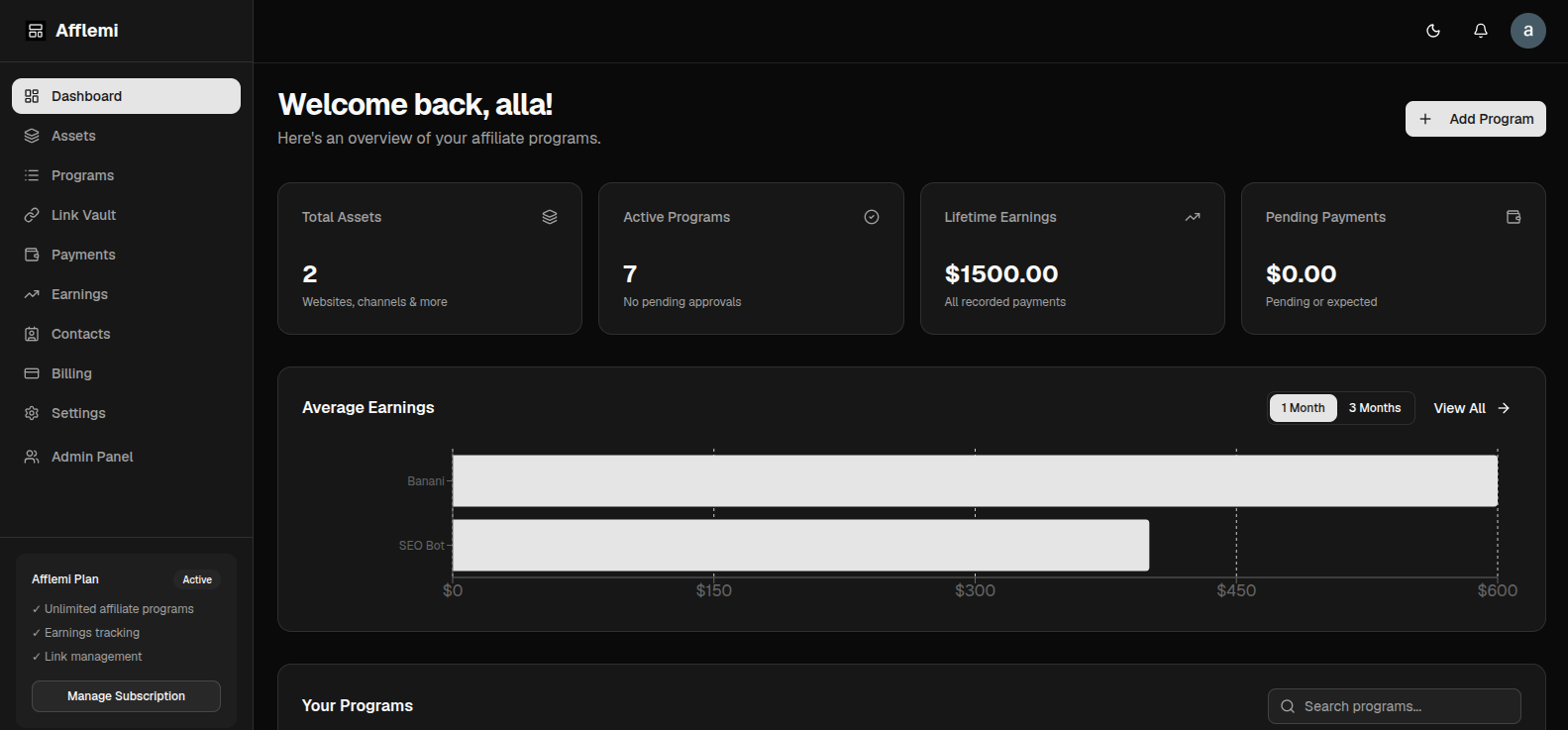
Afflemi is built around one core philosophy: every affiliate program you've joined, regardless of network or platform, is organized in one place, and every link you save is easy to find again. Because network APIs are fragmented or non-existent for creators, Afflemi is manual-first, so it works with any program, from global affiliate networks down to direct brand deals.
Afflemi also saves the normal links on your own site — blog posts, pillar pages, comparison pages — so every URL you reach for while writing is in one place: affiliate links and your site's own links alike.
The data model follows a simple, logical hierarchy:
An Asset is any channel where you publish content (Blog, YouTube, Newsletter, App, Socials). Each asset contains its specific affiliate Programs. Every affiliate link, payment record, note, or contact belongs to a specific program. Page Links — your site's own links — attach directly to an asset and live in /dashboard/links.
Quick Start Guide
Setting up your account takes less than 5 minutes. Follow these four steps to get your links and programs organized:
Define your publishing channel (e.g., Tech Blog, YouTube Channel, Newsletter).
Add affiliate programs manually or import your existing spreadsheet via CSV.
Save your affiliate links and your site's own page links — individually or imported from your site's sitemap — then tag where they are published on your site.
Record payouts as you receive them to build out your earnings charts and asset comparisons.
Assets Management
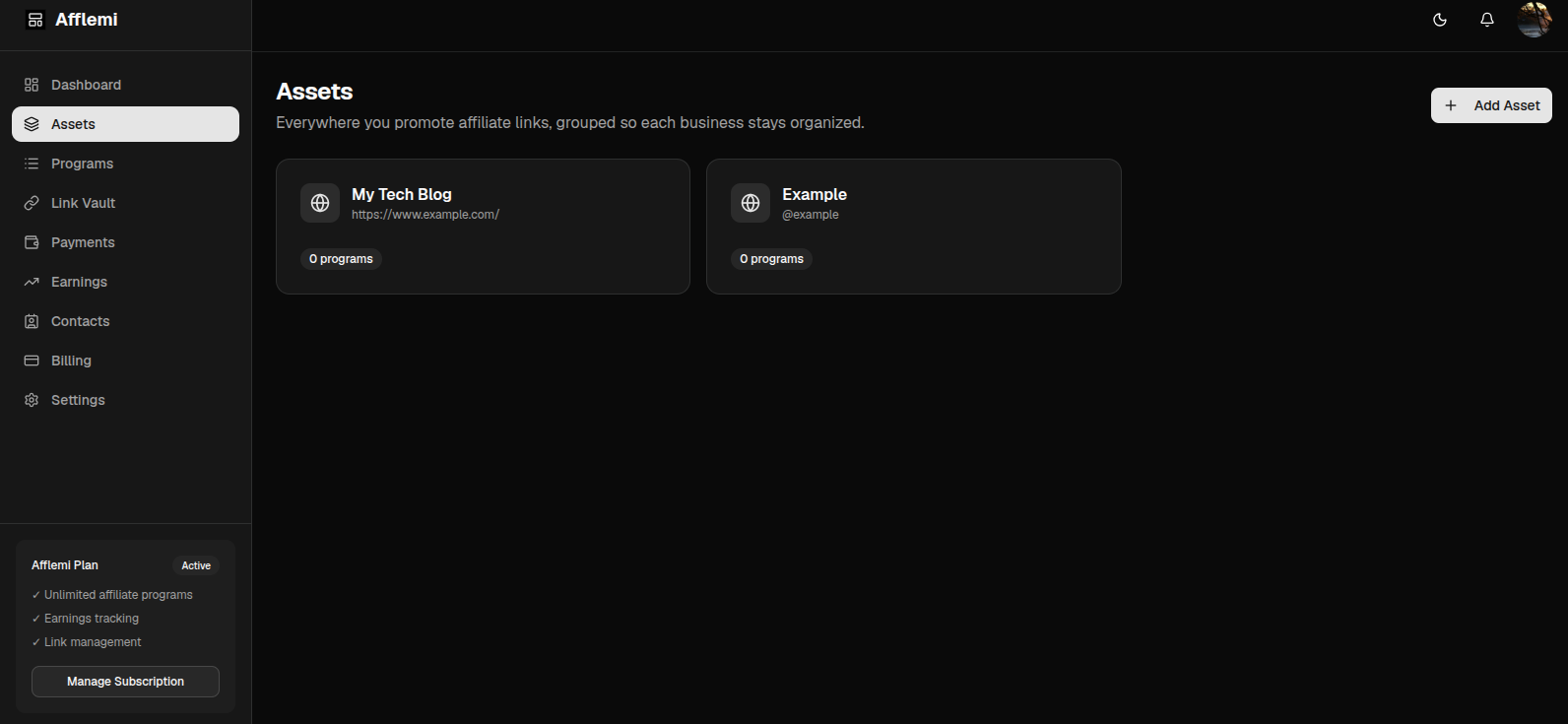
Assets isolate your affiliate programs by publishing channel. This prevents blog programs from cluttering your YouTube channel or newsletter data.
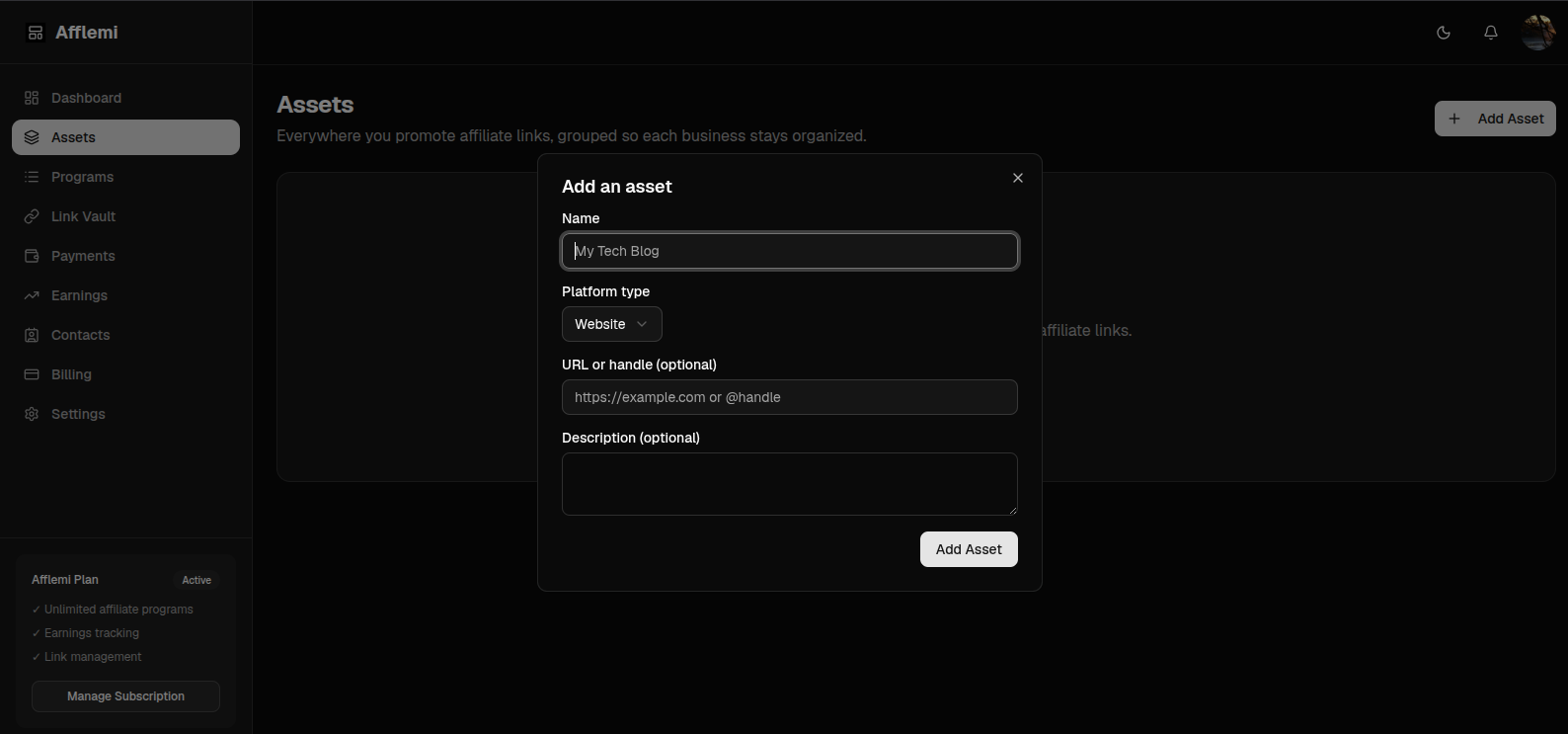
- Creating an Asset: Navigate to
Assets → Add Asset. Choose a channel platform (Website, Newsletter, YouTube, Podcast, TikTok, Instagram, X, LinkedIn, App, or Other), name it, and enter optional handles/URLs. - Editing an Asset: Open the asset detail page and click
Edit Assetto update names or descriptions. - Deleting an Asset: Accessible from the Edit view. Warning: Deleting an asset removes all programs, links, payments, notes, and contacts under it. A confirmation modal is required.
Affiliate Programs
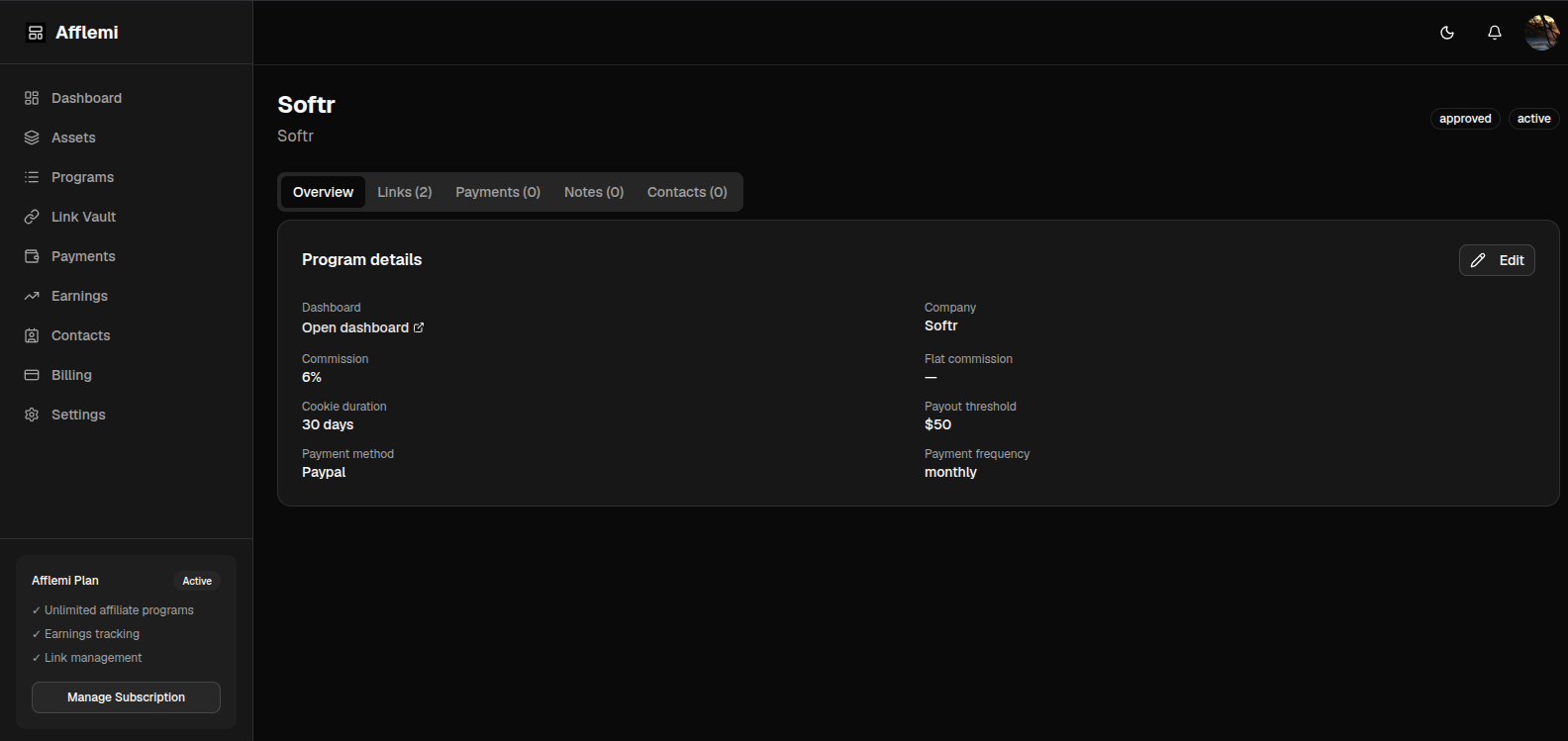
Inside any asset, click Add Program. The program wizard is organized into three sections:
- Basic Information: Program name, company, platform network (e.g., Impact, ShareASale, In-house), approval status (approved, pending, rejected, not applied), date joined, and dashboard login URL.
- Commission Terms: Commission rate (Percentage %, Flat $, or Both), recurring indicator, and cookie duration in days.
- Payout & Status: Minimum payout threshold, payment frequency, payment method, and operational status (active, paused, removed).
Term Change History: When you update a program's commission rates, cookie window, or payout thresholds, Afflemi logs a timestamped snapshot under the Overview tab so you can look back at how the program's terms have changed.
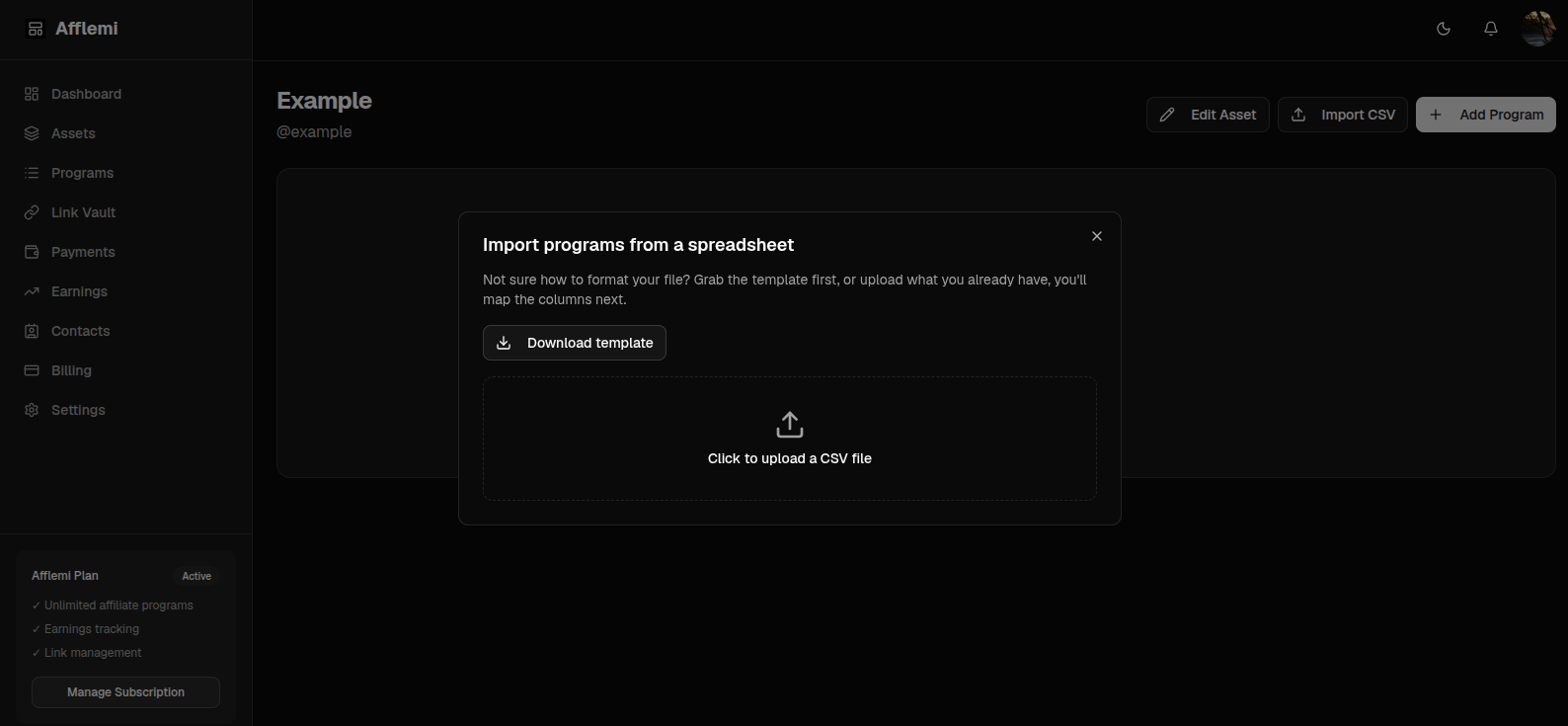
CSV Import Wizard
Migrating from spreadsheets is effortless. Open any asset and select Import CSV:
- Download Template: Grab our sample CSV template or upload your existing spreadsheet.
- Smart Column Mapping: Map your CSV headers to Afflemi fields (Program Name, Company, Commission %, Status, etc.).
- Validation Preview: Review valid rows before importing. Incomplete or invalid rows are flagged automatically.
- 1-Click Undo: If an import doesn't look right, click
Undo Importimmediately after completion to revert all created programs safely.
Link Vault & Tracking
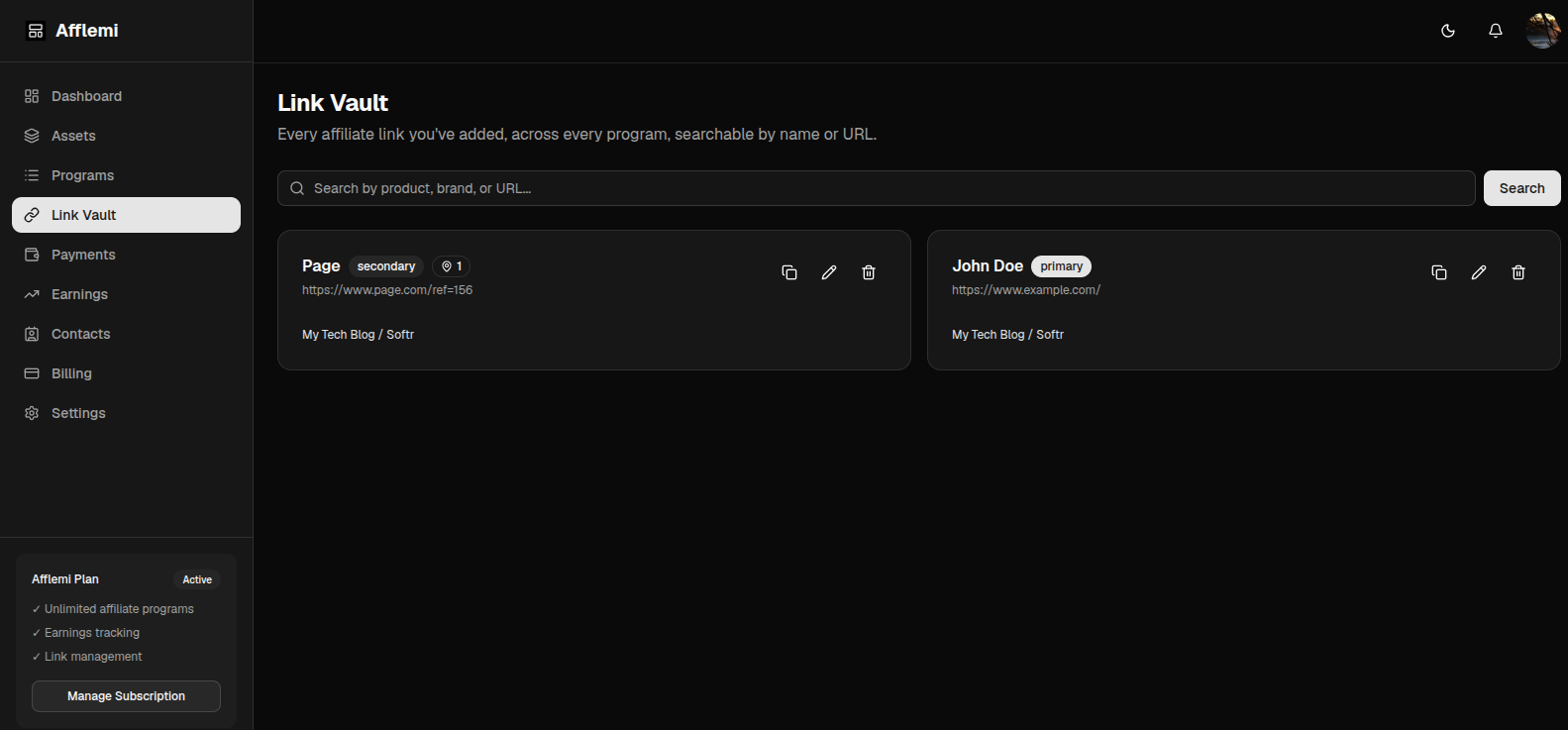
Store every tracking link per program. Mark main links as Primary and landing pages/campaign links as Secondary.
- One-Click Copy: Click the copy icon on any link card to copy the clean URL to your clipboard.
- Inline Editing: Click the pencil icon to update a link URL inline without opening complex forms.
- Link Vault: Accessible via
/dashboard/vault. Provides a 2-column responsive grid view of every link across all your assets with instant search by name or URL.
Import Page Links from a Sitemap
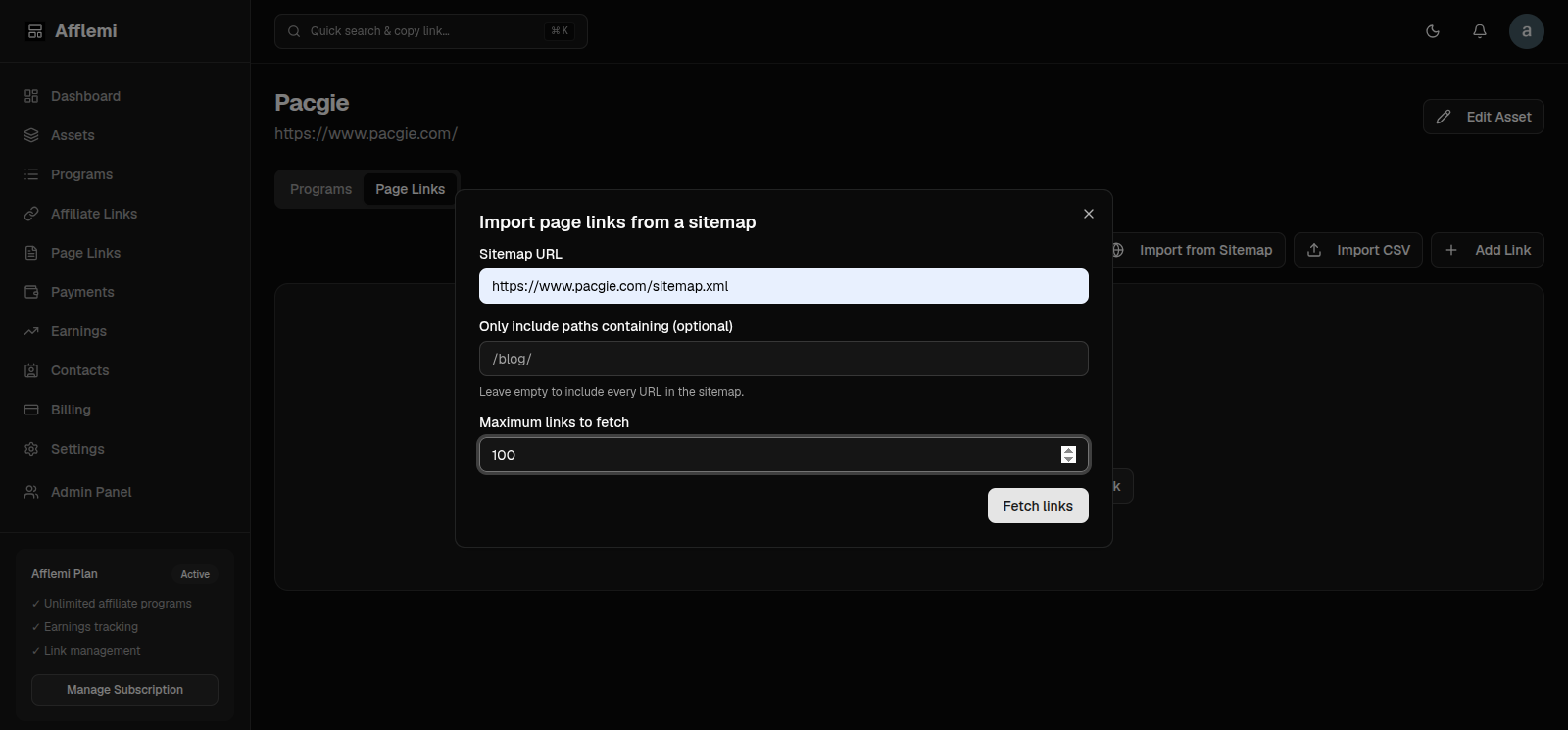
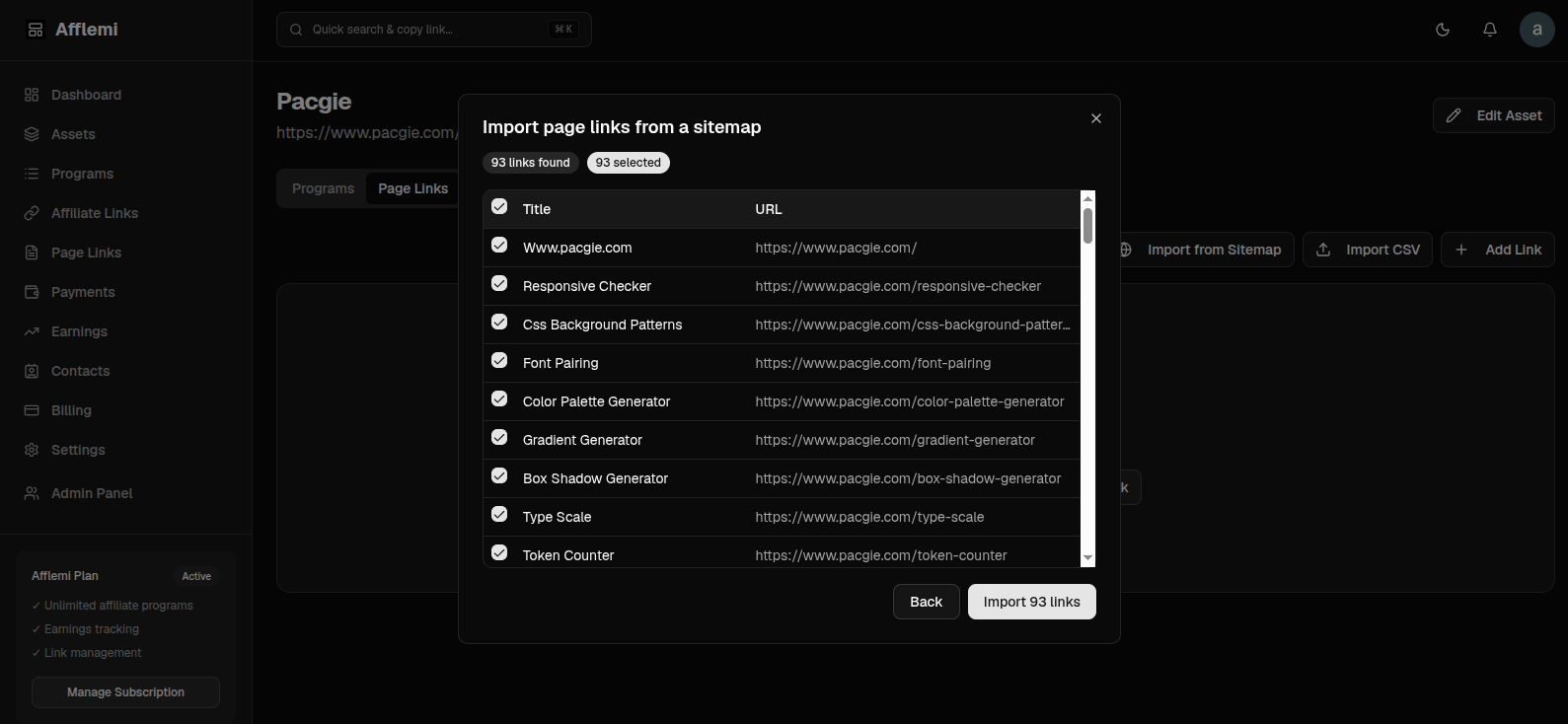
Have a site with dozens (or hundreds) of pages? Instead of saving each page link by hand, point Afflemi at your site's sitemap.xml and bulk-import your page links in one go.
- Open the dialog: Go to any asset's detail page, open the Page Links tab, and click
Import from Sitemap. - Enter the sitemap URL: Paste the sitemap URL (e.g.
https://yoursite.com/sitemap.xml). Optionally filter to only paths containing a string (e.g./blog/) and set a maximum number of links to fetch (up to 500). Leave the filter empty to include every URL in the sitemap. - Preview & select: Afflemi fetches the sitemap and shows a table of found links with auto-generated titles. Check or uncheck any row — everything is selected by default — then click
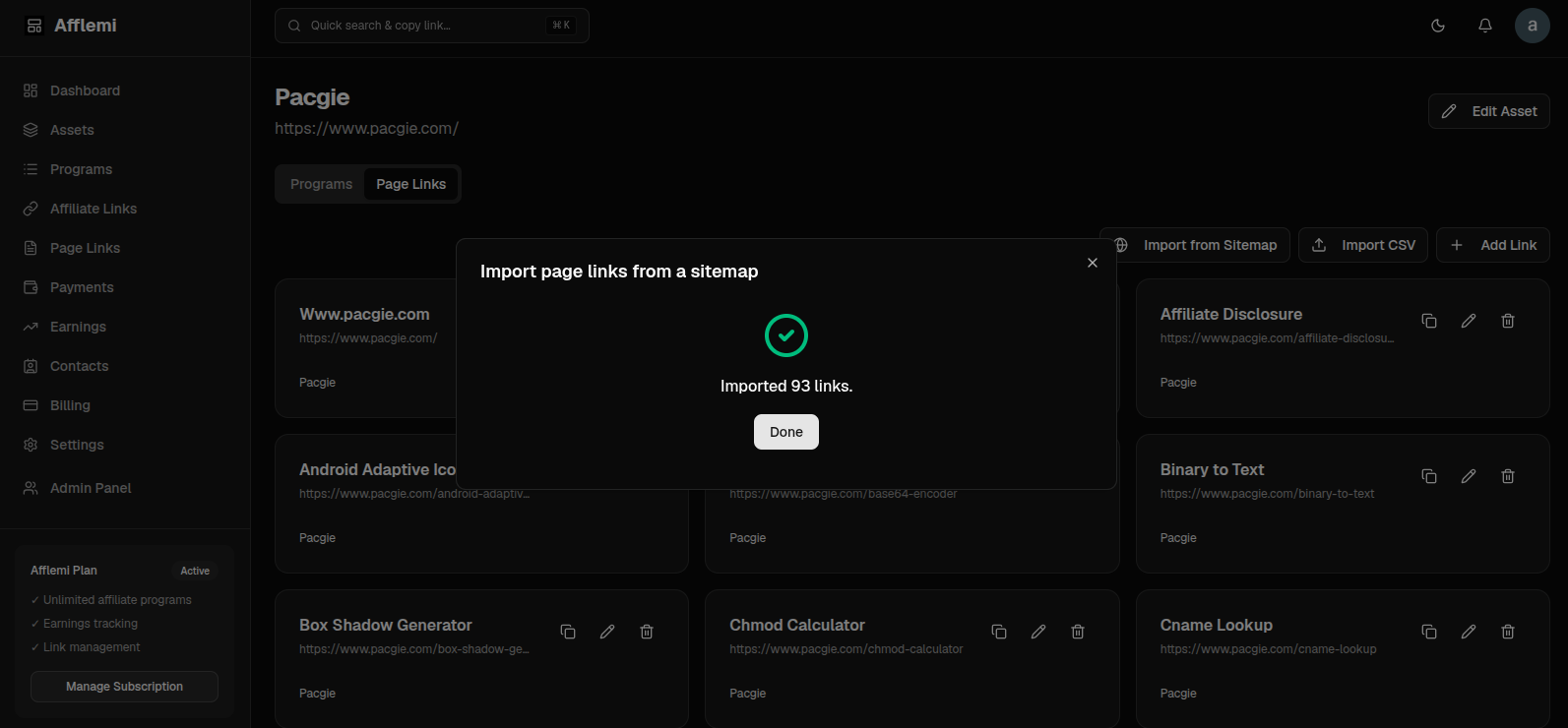
Import N links. - Done: The links are saved as page links under that asset. URLs you've already saved are skipped automatically (deduplicated by URL), so re-importing after publishing new posts is safe.
Imported links appear in the asset's Page Links tab and in the global Page Links page, searchable by title — ready to be found by the browser extension while you write.
Where Links Are Used (Promotions)
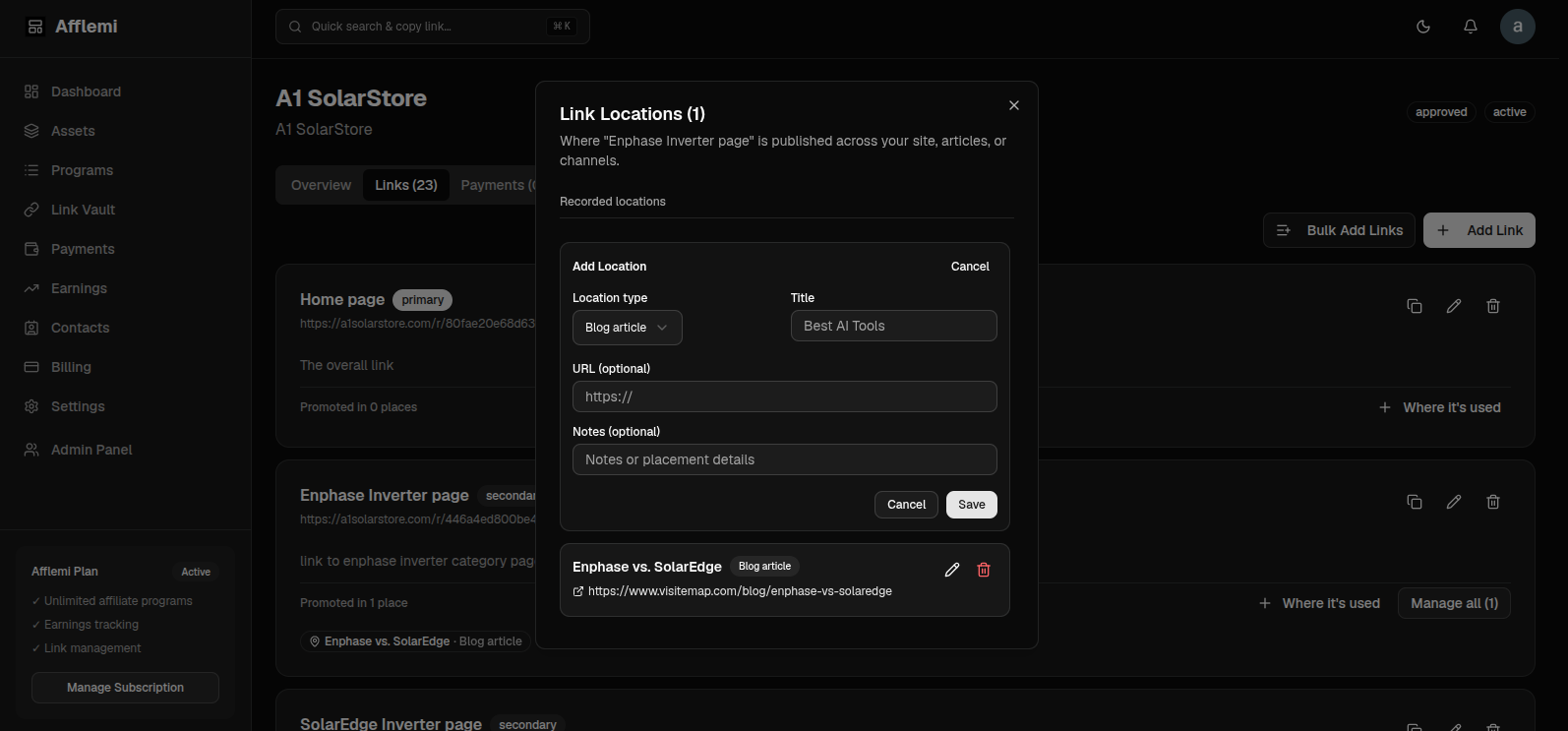
Never lose track of where your affiliate links are published. Attach placement entries to any link (Blog article, Landing page, Comparison page, Newsletter, YouTube description, Social post).
- Clean Badge Preview: Each link card displays a clean preview of its primary location. If used in multiple pages (e.g. 10 articles), a
+9 morebadge appears. - Manage Locations Modal: Click
Manage allto open a full modal list of published locations. You can view target URLs, add new locations, and edit or delete existing entries with single-click controls.
Install & Connect the Extension
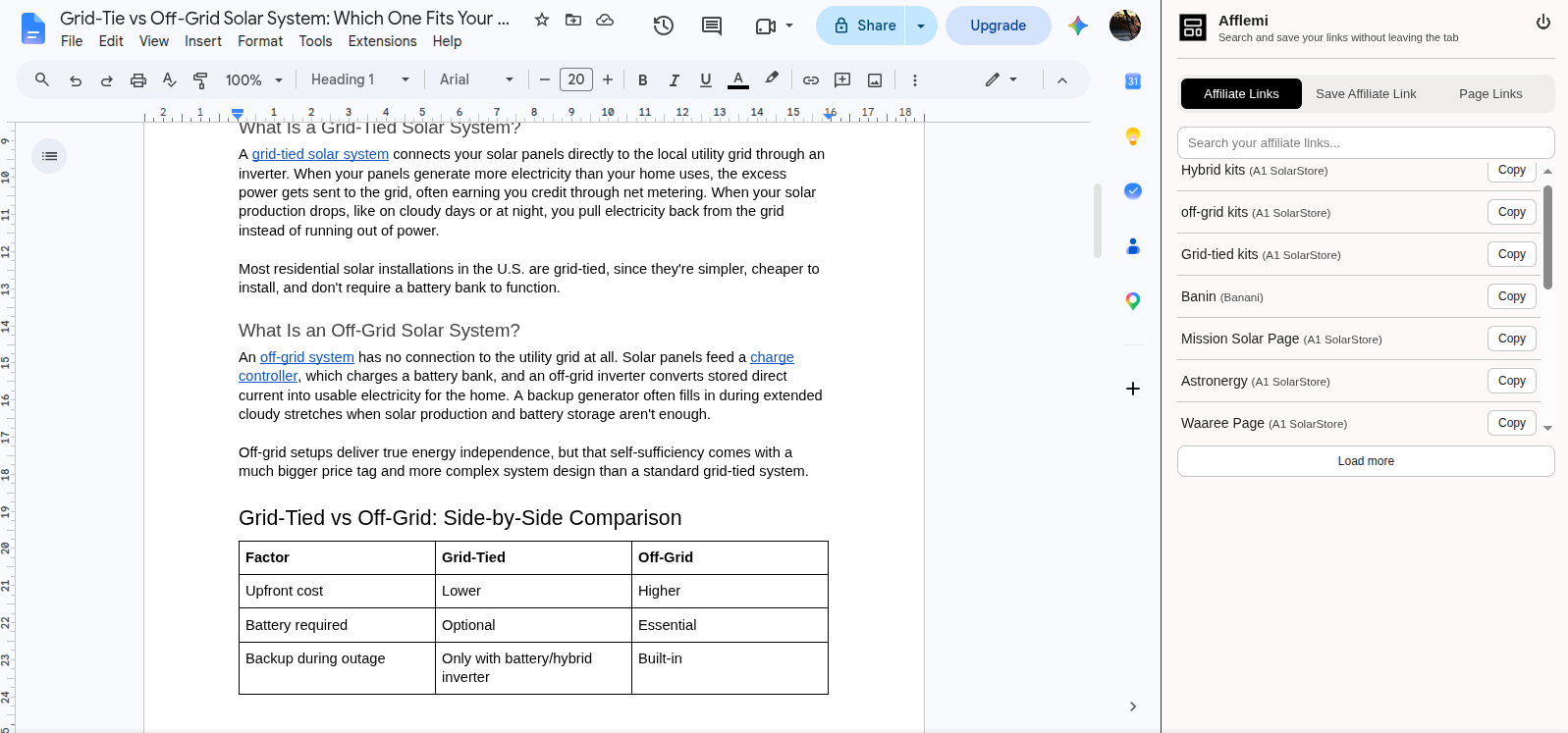
The Afflemi browser extension puts your whole link vault — affiliate links and page links — in a side panel you can open from any tab, so you can search and copy links while you write.
- Install: Add the extension from the Chrome Web Store (also works in Edge, Brave, and other Chromium browsers).
- Pin it: Click the puzzle icon in your browser toolbar and pin Afflemi so the icon stays visible.
- Open the panel: Click the Afflemi icon or press
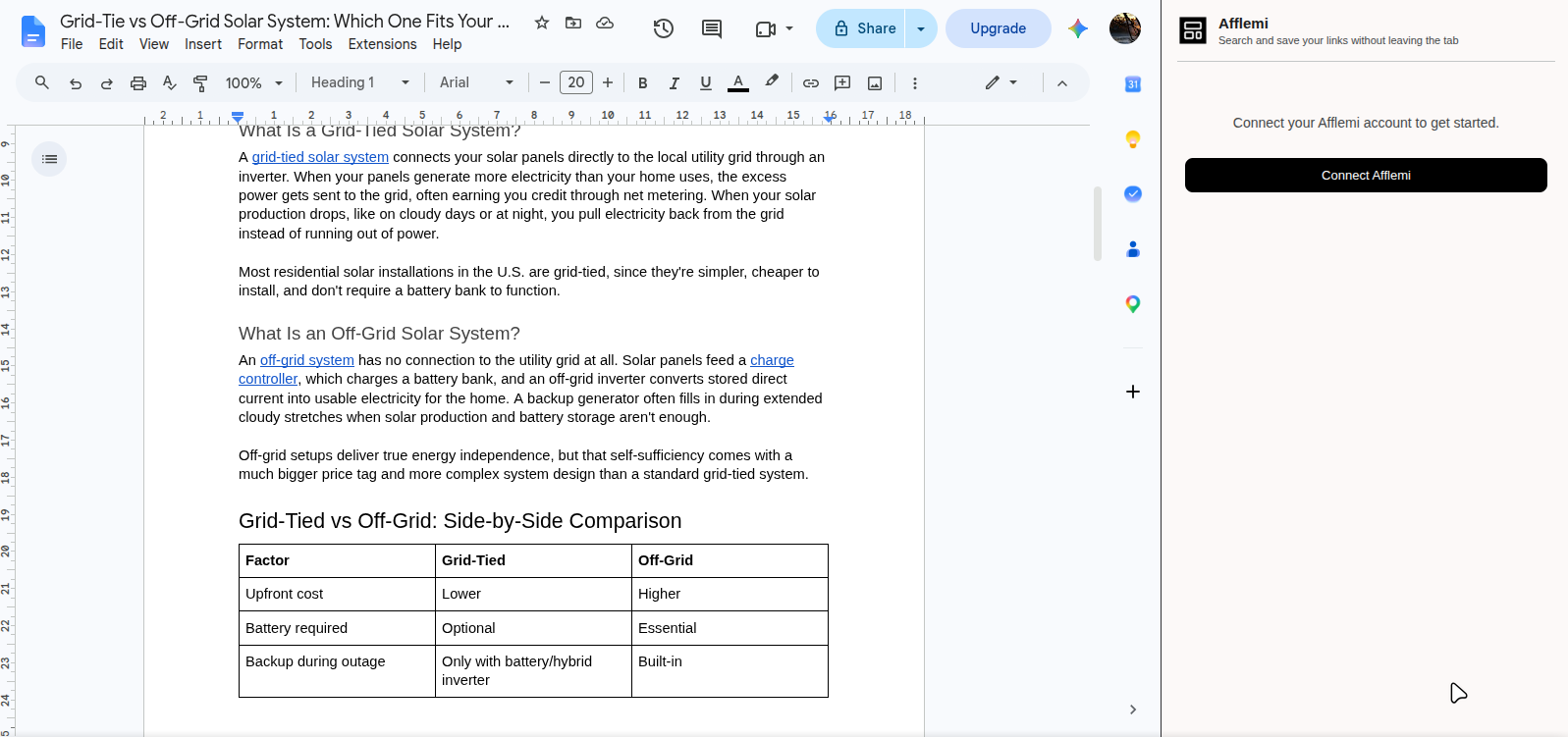
Alt + Ato open the side panel. - Connect: On first use, click
Connect Afflemi. You'll be signed in to your existing Afflemi account, and the panel unlocks. This is a one-time setup — after that, the extension keeps you signed in automatically. - Disconnect: Use the power button in the panel header at any time to disconnect and clear the locally stored session.
Search & Copy Links While Writing
The side panel is designed around the moment you're mid-sentence and need a URL: open it, search, copy, paste, done.
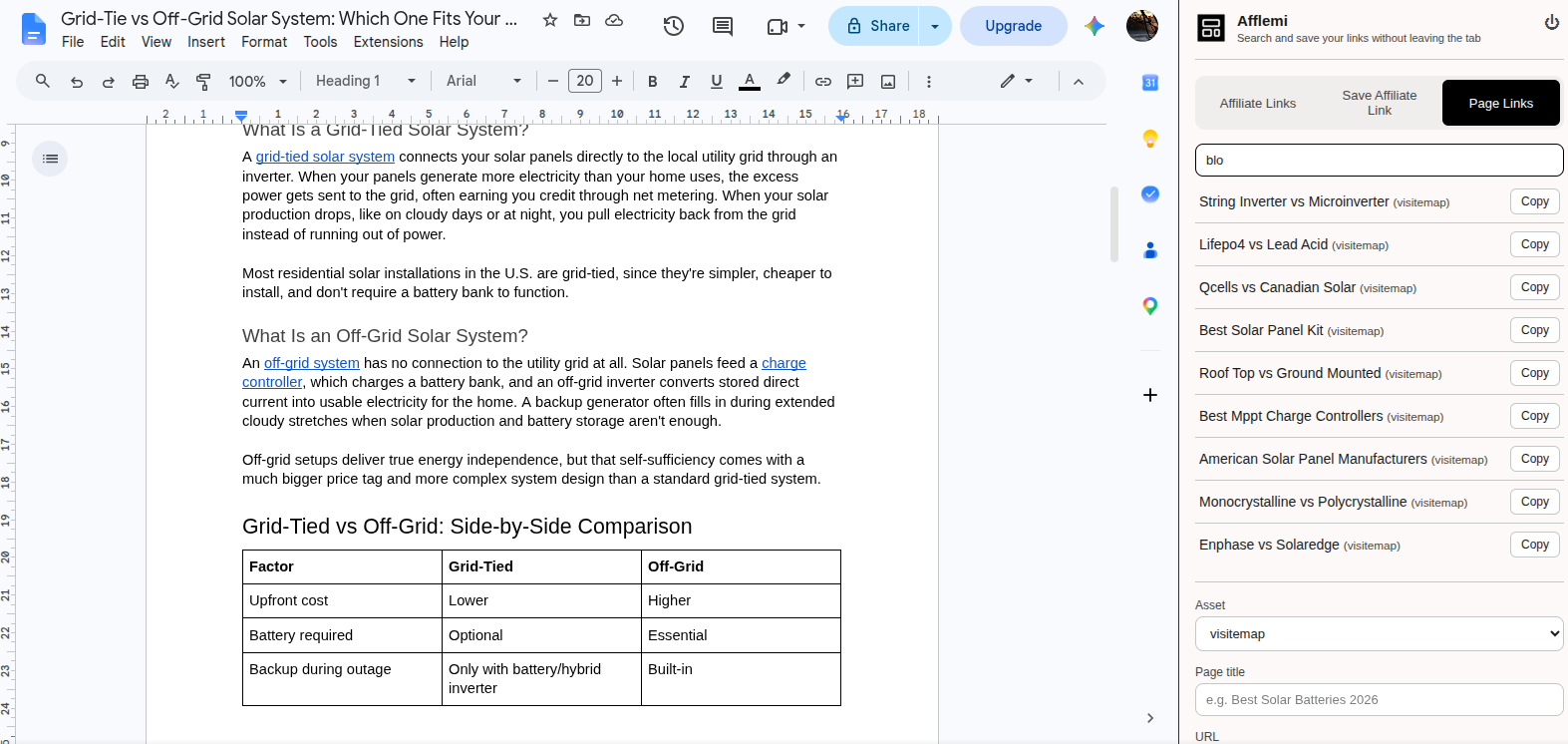
- Two tabs, both link types: The Affiliate Links tab searches your link vault (by name, product, brand, or URL), and the Page Links tab searches your saved site links (by page title or URL).
- Search as you type: Results update live as you type, with pagination for large vaults.
- One-click copy: Hit
Copyon any result and the clean URL is on your clipboard, ready to paste into WordPress, Notion, or any editor. - No tab switching: Everything happens in the side panel, so your article stays front and center.
Quick Save From Any Tab
Just joined a program or saved a page worth reusing? Save it without leaving the tab you're on.
- Save an affiliate link: Use the Save Affiliate Link tab. Pick the asset, choose an existing program or type a new one, name the link, and paste the tracking URL. A new program is created automatically if needed.
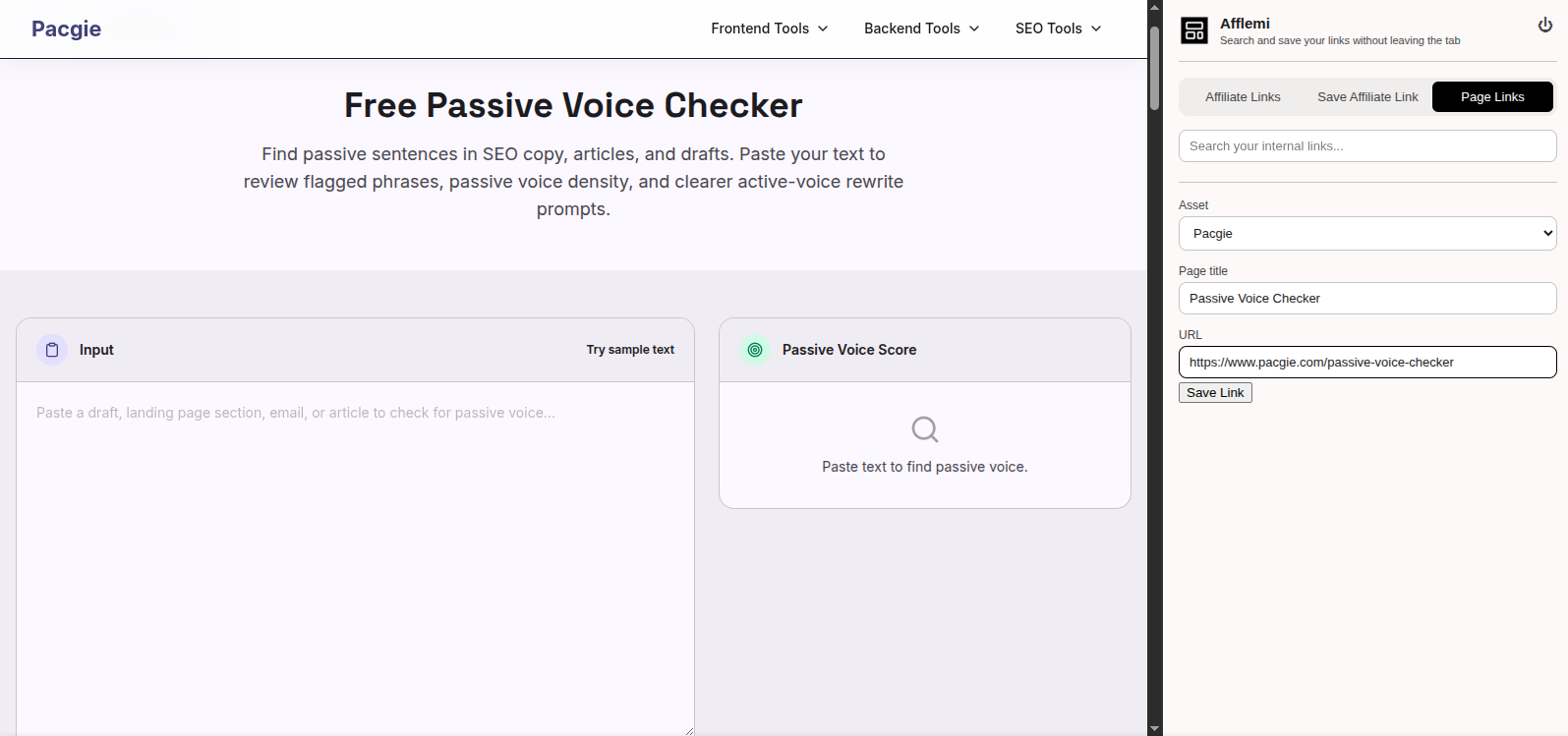
- Save a page link: Use the Page Links tab. Pick the asset, and the title of the page you're currently viewing is pre-filled for you — just add the URL and save.
- Saved instantly: Both types land in your vault (and in the web app) immediately, so they're searchable the next time you open the panel.
Extension Troubleshooting
- Session expired: The extension refreshes your session automatically. If a refresh fails and the panel shows the Connect screen, click
Connect Afflemionce to sign back in — your links are untouched. - Extension not connecting: Make sure you're signed in to Afflemi in the browser, then retry the connect flow.
- Your data: The extension reads your active tab's title only when you use the save feature, stores your session tokens locally on your device, and sends the same data the web app does. See the Privacy Policy for details.
Logging Payments
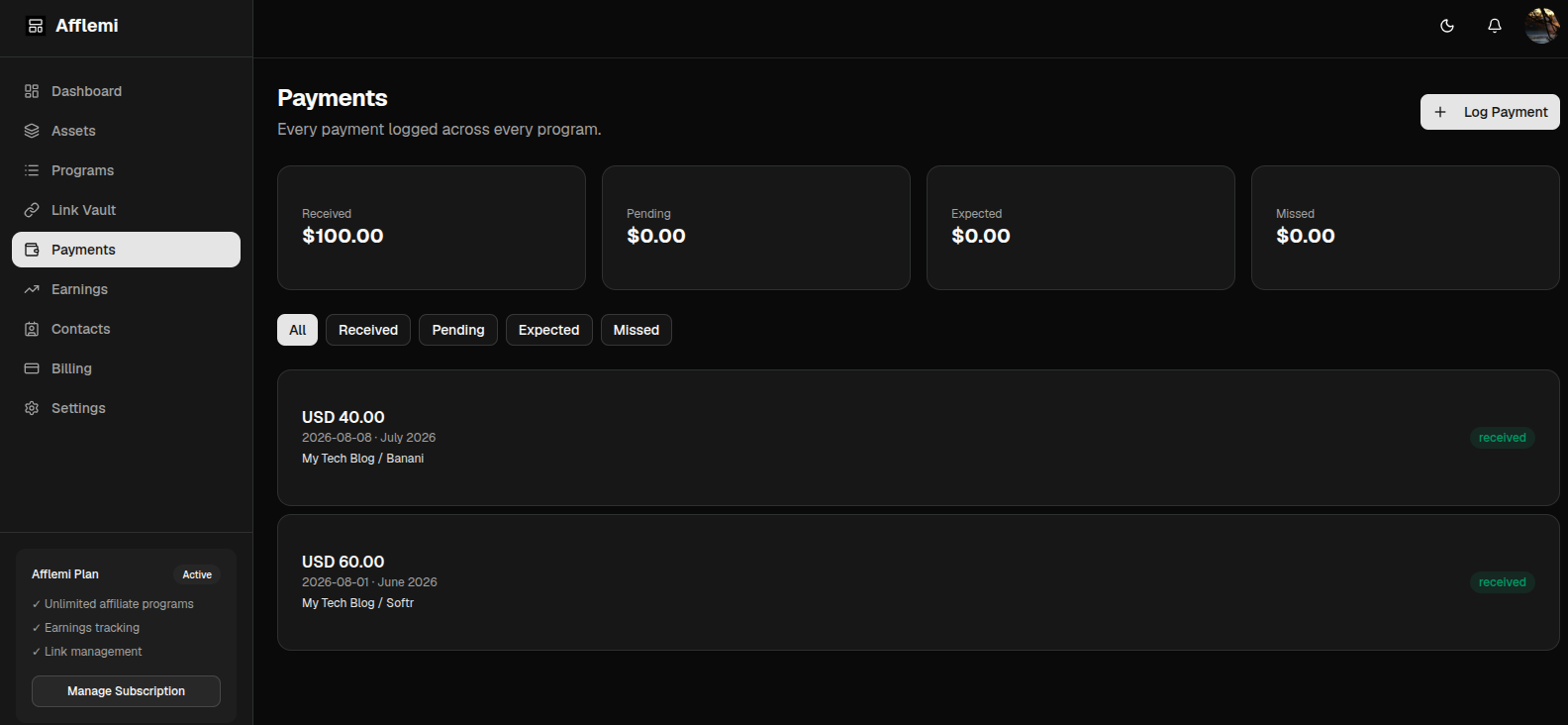
Log payouts from individual program detail pages or globally via /dashboard/payments.
Payment status definitions:
- Received Payout confirmed & deposited. Counts directly toward revenue totals.
- Pending Approved payout waiting for disbursement.
- Expected Estimated earnings for the current cycle.
- Missed Overdue or uncollected payout requiring follow-up.
Notes & Affiliate Contacts
Maintain strong relationships and clear communication logs for every program:
- Program Notes: Timestamped journal entries for storing coupon codes, rate negotiations, or promo guidelines. Notes are append-only so relationship history is never lost.
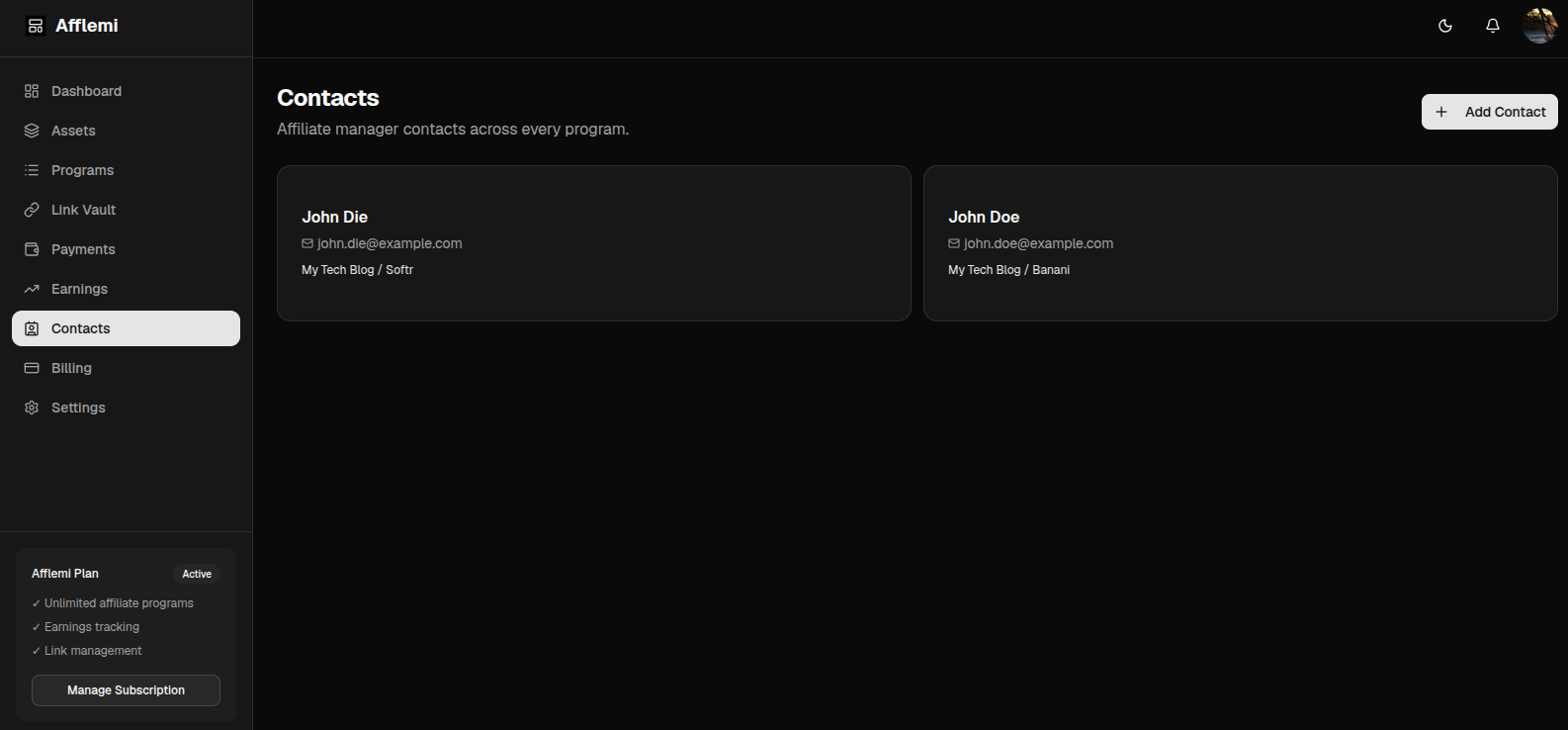
- Affiliate Contacts: Store affiliate manager emails, Slack channels, Discord handles, and phone numbers. Search all contacts globally at
/dashboard/contacts.
Programs Catalog
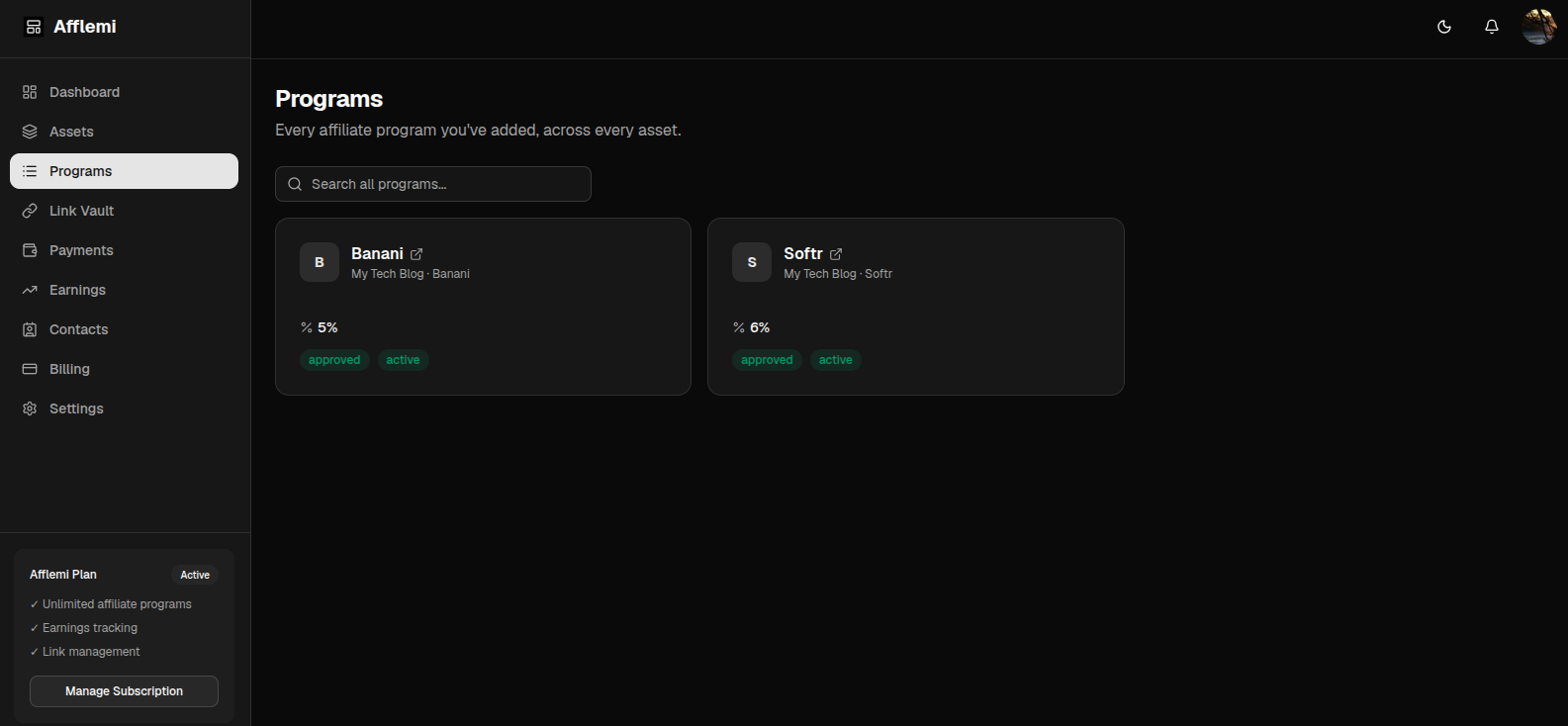
The Programs page (/dashboard/programs) offers a flat, cross-asset catalog of every affiliate program you maintain. Features a responsive 3-column card grid with live debounced search by program or company name.
Earnings Analytics & Comparisons
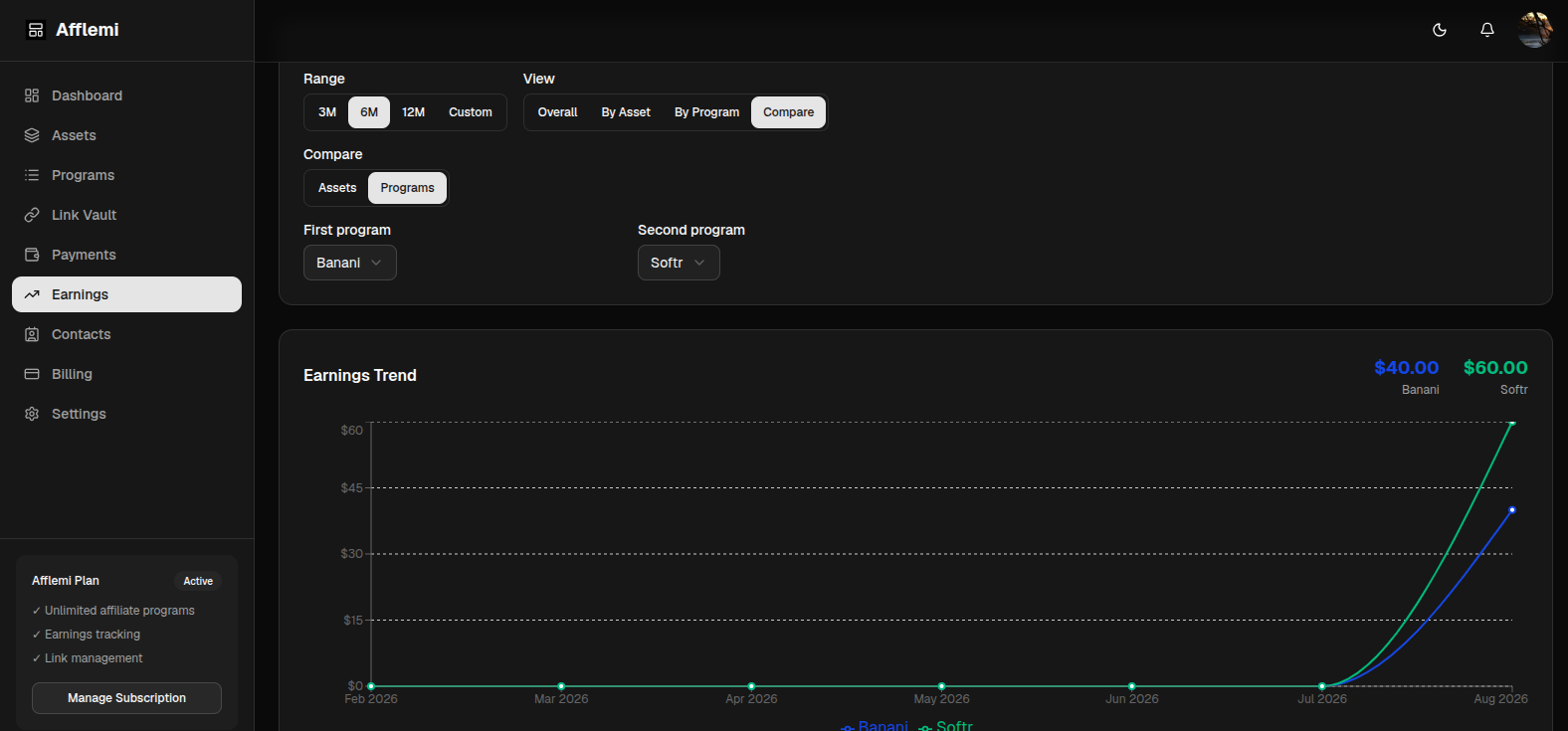
Log your earnings as you receive them, and see the trend and compare performance across channels on the Earnings page (/dashboard/earnings).
- Flexible Date Ranges: View 3-month, 6-month, 12-month, or custom date ranges.
- 4 Analysis Modes: Switch between Overall, By Asset, By Program, and Side-by-Side Comparison mode.
- Smart Aggregation: Shorter date ranges (under 90 days) automatically group by week for granular tracking, while longer ranges group by month.